From Blurry to Brilliant: A Step-by-Step Guide to Enhancing Travel Footage
A blurry travel video can totally ruin good content. It hides all the important details, makes the visuals look weak and just generally makes the whole clip look like it was recorded on a pretty low-end cam. This is something that happens a lot with footage recorded on our phones or when we’re watching compressed files from years ago.
But blurry travel footages aren’t always beyond repair. While they won’t always become perfectly sharp, they can still look much cleaner and easier to watch. This guide looks at what usually causes the video blur and how to handle it with straightforward methods.
Why Videos Turn Blurry
It’s always better to figure out cause of blur before trying to fix it. Different types of blur require different technical treatments.
- Motion Blur: Caused by fast-moving subjects or shaky camera.
- Out-of-Focus Blur: Occurs when camera lens fails to lock onto subject.
- Compression Artifacts: Resulting from low-bitrate exports that create “blocks” or “smudging.”
- Low Resolution: Upscaling a small file to a large screen without proper enhancement.
Some of these can be fixed better than others. For example, motion blur is harder to repair than low resolution.
Types of Blur (And What They Mean)
Not all blur looks the same. Identifying the type helps you choose the right fix.
| Blur Type | Description | What It Looks Like |
| Soft Blur | Overall lack of sharpness across the video | Everything appears slightly fuzzy |
| Motion Blur | Caused by movement during recording | Moving objects leave visible trails |
| Compression Blur | Result of heavy file compression | Blocky areas or smeared details |
| Focus Blur | Camera fails to focus on the subject | Subject appears out of focus |
Each type needs different approach for best results.
Methods to Fix Blurry Travel Videos
There are several ways to improve clarity. Some are basic. Others use advanced tools.
1. Adjust Sharpness Manually
Most editing apps include a sharpness slider. This tool enhances edges and makes objects stand out more. It works best when the blur is light and details are still present in the footage.
- Works well for mild blur
- Helps define edges and outlines
- Easy to apply in most apps
Be careful with this setting. Too much sharpness adds grain and makes the video look rough. It can also create unwanted halos around objects. Start with small adjustments and increase slowly.
This method is fast, but it cannot recover missing details. It only enhances what is already there.
2. Improve Brightness and Contrast
Blurred footage can be a real pain, especially when it happens in dark or super dull parts of the video. Just a tiny adjustment to brightness & contrast and you might be surprised at how clear the image looks – even if that blur is still there (and it probably is).
- Increase brightness to reveal hidden details
- Adjust contrast to separate objects from the background
- Improve overall visibility
This approach works well when video looks dull or washed out. It helps viewer see more clearly, even if original sharpness is low.
It does not fix blur at a technical level. It improves how the video is perceived. Many editors use this step along with other methods for better results.
3. Use AI Video Enhancement
Using AI video enhancement is most effective option in most cases. Instead of adjusting simple settings, AI tools process the video frame by frame. They analyze patterns, rebuild edges, and reduce noise.
- Restores lost detail where possible
- Reduces grain and compression artifacts
- Improves sharpness without heavy distortion
AI Tools are especially good at making old videos look a lot better, clips that’ve been squished for space, and recordings that aren’t up to much. They reduce need for manual editing and keep results more consistent.
A dedicated video quality enhancer can take care of most of the process. It makes things simpler and usually gives cleaner output than standard editing tools.
How to Fix a Blurry Video Using Vmake
Vmake video enhancer focuses on improving video quality with minimal effort. It handles the technical side for you. Here is how to use this tool step by step to fix blurry video.
Step 1: Upload Video
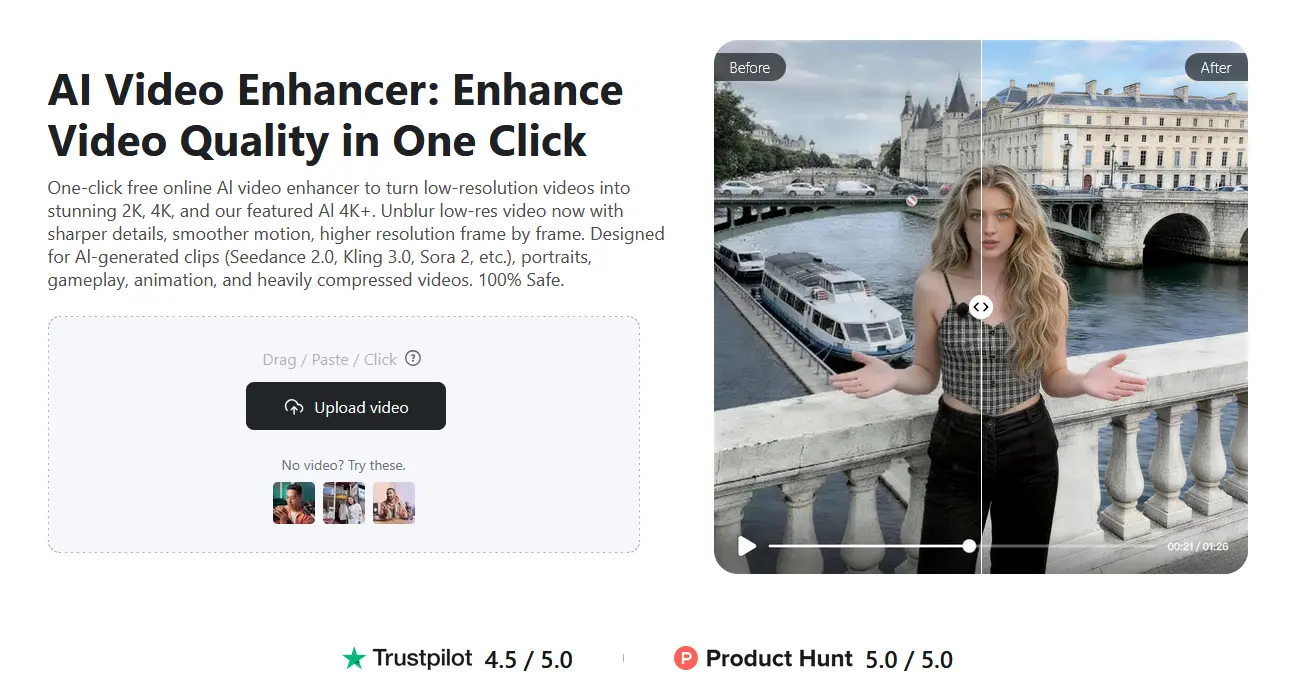
Open the Vmake and upload your blurry video file. Try to use the original version instead of a compressed copy. Better input quality gives a better result. So, starting with the cleanest file you have makes a clear difference.
Step 2: Apply Enhancement and Process
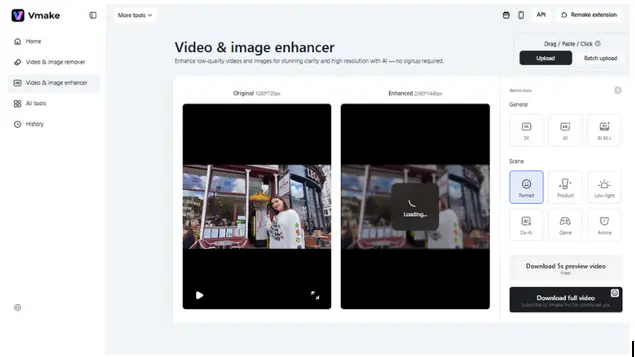
Next you need to select type of enhancement you want to apply. That might be sharpening, noise reduction, or trying to make it look a whole lot clearer. Once you’ve chosen that, just let tool do its thing. It’ll scan each frame. Tidy up details. Sort out lighting and try to knock grain right back where possible. Processing time depends on size and length of your video.
Step 3: Preview and Export
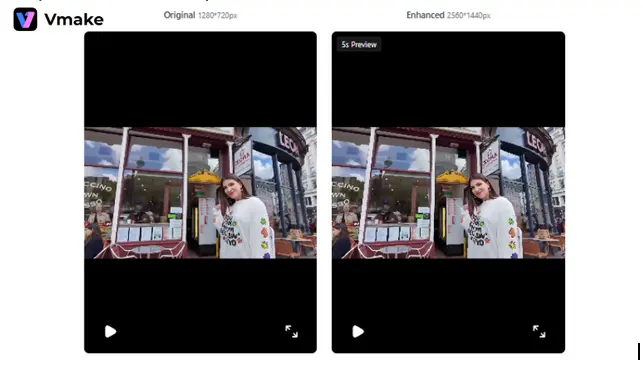
After processing, review the result before downloading. Check if the video looks clearer and more balanced. If needed, adjust settings and run it again. Once satisfied, export final video in HD format for better playback on modern screens.
Why Vmake Works Better Than Basic Apps
Many mobile apps offer sharpening tools. They only adjust pixels that already exist.
Vmake takes a different approach. It rebuilds detail using AI.
Here is the difference in practice:
- Mobile apps: increase sharpness manually
- Vmake: improves clarity automatically
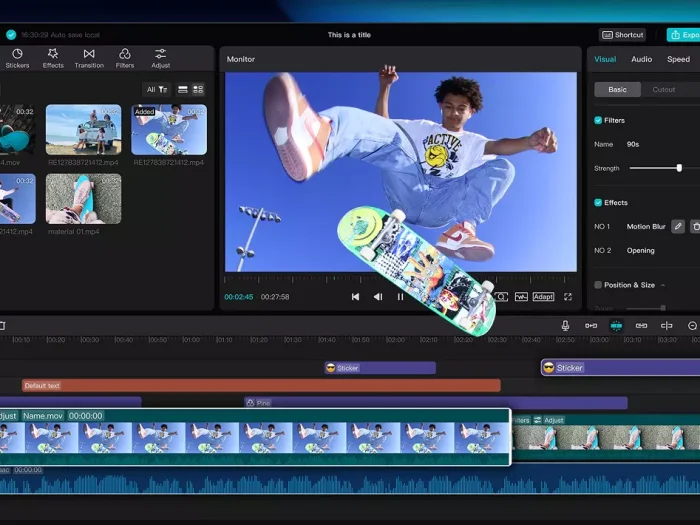
Apps like CapCut or InShot can help with small fixes. They require manual effort and trial-and-error. Vmake handles most of the process in one go. This saves time and gives more consistent results.
What Cannot Be Fully Fixed?
Some problems are harder to solve.
- Severe motion blur
- Extremely low resolution
- Missing details in the original video
Tools can improve these, but they cannot fully restore lost information.
Wrapping Up
Blurry videos are common. But they are not always a lost cause. Right approach can improve clarity and make content usable again. Manual edits can help in simple cases. They take time and need careful adjustments. AI tools simplify the process and deliver better results with less effort.
Vmake stands out because it focuses on quality improvement instead of manual editing. It handles the technical work and produces cleaner output. If you deal with blurry footage often, using a tool like this can save time and improve consistency across your videos.